
TECHNOLOGY
How Refresh Rate Impacts Your Portable Monitor Experience (60Hz vs 120Hz vs 144Hz)

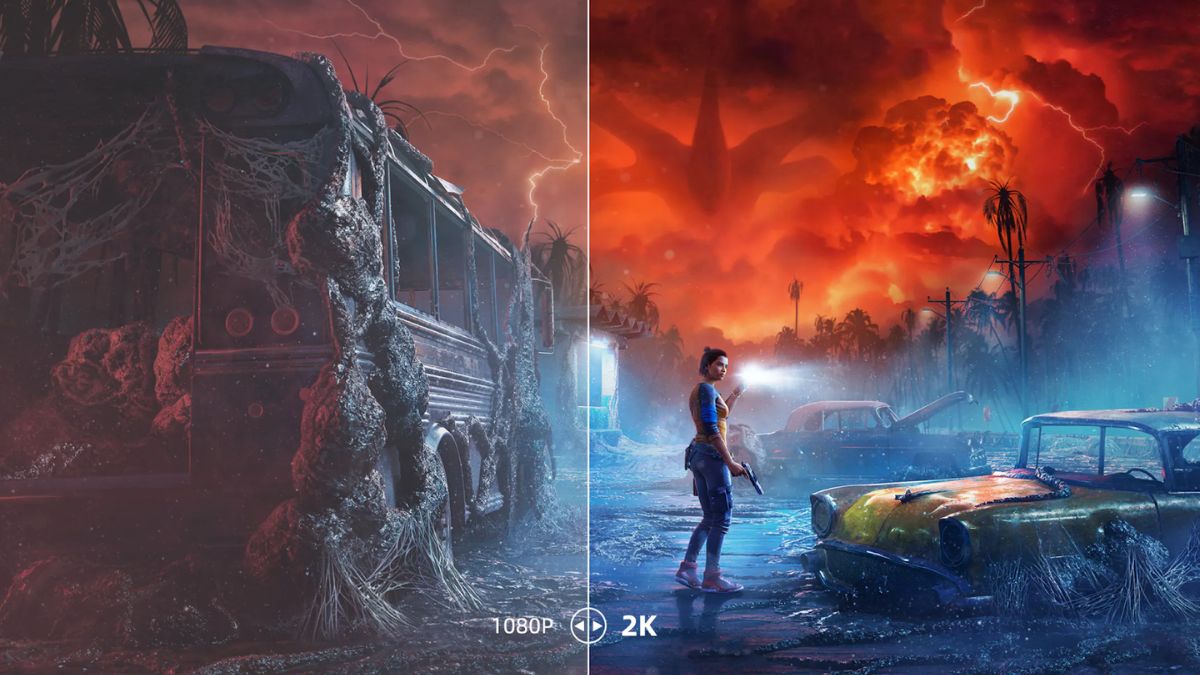
When you’re choosing a portable monitor, one of the most important features to look at is the refresh rate. The refresh rate affects how smooth motion looks on the screen, how fast your inputs feel, and even how comfortable your eyes are during long sessions. Whether you’re gaming, streaming, or working, the difference between 60Hz, 120Hz, and 144Hz is noticeable.
This guide explains what refresh rate means, how it impacts your experience, and which refresh rate is best for your needs. We’ll also compare popular portable monitors so you can make a smart choice.
What Does Refresh Rate Mean?
The refresh rate is how many times per second your screen updates with new images. It’s measured in Hertz (Hz).
- 60Hz = 60 times per second
- 120Hz = 120 times per second
- 144Hz = 144 times per second
A higher refresh rate makes fast motion look smoother and reduces blur. For example, in gaming, higher refresh rates let you see opponents’ movements more clearly and react faster. In everyday use, it simply makes scrolling and animations look smoother.
Why Refresh Rate Matters for Portable Monitors
Portable monitors are designed for flexibility — you can use them with laptops, gaming consoles, or even your phone. But the refresh rate determines how enjoyable that experience is.
Here’s how refresh rate affects different tasks:
- Gaming: Higher refresh rates (120Hz and 144Hz) provide smoother motion, lower input lag, and a competitive edge in fast-paced games.
- Movies and Video: 60Hz is usually fine for watching films or TV shows, since most content is 24–60fps.
- Work and Productivity: A higher refresh rate makes scrolling through documents, editing, or switching between apps feel smoother and easier on the eyes.
- Portable Use: Since portable monitors are smaller and lighter, a higher refresh rate can make them feel more responsive, especially if you’re pairing them with modern laptops or gaming consoles.
Comparing 60Hz vs 120Hz vs 144Hz
Let’s look at how these refresh rates stack up side by side.
| Feature | 60Hz | 120Hz | 144Hz |
| Motion Smoothness | Basic, can look choppy in fast scenes | Much smoother, noticeable upgrade | Ultra-smooth, best for fast motion |
| Input Lag | Higher | Lower | Lowest |
| Gaming Experience | Fine for casual play | Great balance of smoothness and speed | Competitive-level smoothness |
| Eye Comfort | Standard | Better for long use | Best for extended gaming or work |
| Common Use | Office, movies, casual gaming | Gaming, multitasking, everyday use | Esports, competitive gaming, immersive use |
The 60Hz Experience
Most traditional monitors run at 60Hz. If you’ve never used a higher refresh rate display, this will feel normal.
- Pros: Works with any device, affordable, fine for movies and casual use.
- Cons: Looks choppy in fast-moving games, higher input lag, not as smooth for scrolling or productivity.
For someone who just needs a portable screen for presentations, video playback, or light work, 60Hz is enough. But once you’ve experienced higher refresh rates, it’s hard to go back.
The 120Hz Experience
A 120Hz monitor offers a clear upgrade over 60Hz. Motion looks smoother, games feel more responsive, and your eyes experience less strain.
- Pros: Noticeably smoother than 60Hz, great for gaming, better for productivity.
- Cons: Not as fast as 144Hz, but still excellent for most people.
This refresh rate is a sweet spot for portable monitors, especially if you connect it to a gaming console like the PS5 or Xbox Series X, which both support 120Hz output.
The 144Hz Experience
A 144Hz portable monitor gives you the smoothest and fastest experience. It’s designed for gamers and power users who want every advantage.
- Pros: Ultra-smooth motion, lowest input lag, best for competitive gaming.
- Cons: Uses more battery power in portable setups, sometimes overkill for casual use.
If you play fast-paced games like shooters, racing sims, or esports titles, 144Hz makes a noticeable difference. Even outside gaming, the smooth scrolling and crisp animations make everyday use more enjoyable.
Real-World Example: UPERFECT UGame K118 Portable Monitor
One good example of a high-refresh portable monitor is the UPERFECT UGame K118. It’s an 18-inch 2K display with FreeSync support and a 144Hz refresh rate.
Key Highlights:
- 18-inch QHD (2560×1600) resolution for sharp detail.
- 144Hz refresh rate via USB-C, or 120Hz via HDMI.
- FreeSync support to prevent screen tearing.
- Lightweight (1.23kg) for portability.
- 100% DCI-P3 color gamut for accurate colors.
- 9ms response time for fast input reaction.
This kind of monitor shows how refresh rate combines with resolution, portability, and gaming features to create a smooth and flexible experience.
Choosing the Right Refresh Rate for You
So, which refresh rate should you choose? It depends on how you plan to use your portable monitor.
- Pick 60Hz if: You only need it for office work, browsing, movies, or casual use.
Pick 120Hz if: You want smoother performance for gaming, multitasking, or eye comfort but don’t need the absolute fastest option. - Pick 144Hz if: You’re serious about gaming, competitive play, or simply want the smoothest possible experience.
Quick Tips Before You Buy
- Check device compatibility: Some laptops, phones, and consoles may only support 60Hz or 120Hz.
- Consider battery life: Higher refresh rates use more power. If you’re running off a laptop or phone, it can shorten battery runtime.
- Look at resolution too: Refresh rate is important, but resolution and color accuracy also affect your experience.
- Think about ports: HDMI may max out at 120Hz, while USB-C can often push 144Hz.
FAQs About Portable Monitor Refresh Rates
Q: Is 144Hz really better than 120Hz?
Yes, 144Hz is smoother, but the jump from 120Hz to 144Hz is smaller than from 60Hz to 120Hz. Gamers will notice it more than casual users.
Q: Can I use a 144Hz monitor with a console?
Yes, but most consoles max out at 120Hz. A 144Hz monitor can still run at 120Hz when connected.
Q: Does a higher refresh rate drain more battery on portable monitors?
Yes. Running at 120Hz or 144Hz can use more power, especially on laptops and phones. Some monitors let you switch refresh rates to save power.
Q: Do I need a special cable for 144Hz?
Often yes. For 144Hz at high resolutions, use DisplayPort or USB-C. HDMI can work but may be limited to 120Hz depending on the device.
Q: Is 60Hz bad for gaming?
Not at all. 60Hz is fine for casual gaming. But competitive players will notice smoother and faster responses on 120Hz or 144Hz.
Q: Which refresh rate is best for eye comfort?
Higher refresh rates (120Hz and 144Hz) reduce flicker and motion blur, making them easier on your eyes during long sessions.
Q: Are portable monitors with 144Hz worth it?
If you play fast-paced games or value smooth visuals, yes. If you mostly watch movies or use it for work, 60Hz or 120Hz may be enough.
Final Thoughts
Refresh rate has a big impact on how your portable monitor feels in daily use. A 60Hz screen is fine for casual use, but once you try 120Hz or 144Hz, you’ll see how much smoother and more responsive everything feels.
If you want the best balance, a 120Hz monitor is a strong choice for most people. But if you’re aiming for top-tier gaming and performance, a 144Hz portable monitor like the UPERFECT UGame K118 can give you that extra edge.
The right refresh rate depends on your needs, but one thing is clear: once you’ve experienced higher refresh rates, it’s hard to go back.
Introduction
If you’ve ever used Quizizz for teaching or training, you’ve probably wondered about the quizizz time limit and how it affects performance. Time settings can shape how students engage, think, and respond. Set it too short, and learners feel rushed. Set it too long, and focus may drop.
In this guide, you’ll learn exactly how the Quizizz time limit works, how to adjust it effectively, and how to use it strategically to improve learning outcomes. Whether you’re a teacher, trainer, or course creator, mastering this feature can make a big difference.
What Is Quizizz Time Limit?
The Quizizz time limit refers to the amount of time allowed for each question or the entire quiz. It controls pacing and influences how participants interact with the content.
Key Points:
- Time can be set per question
- It impacts scoring and engagement
- It can be adjusted depending on difficulty level
- It helps maintain focus and discipline
Quick Definition (Featured Snippet Ready)
Quizizz time limit is the duration assigned to answer each question or complete a quiz, designed to control pacing and enhance engagement.
Types of Time Limits in Quizizz
Understanding the different types of time settings helps you design better quizzes.
1. Per-Question Time Limit
Each question has a fixed time (e.g., 30 seconds).
2. Overall Quiz Timer
A total time limit for the entire quiz session.
3. No Time Limit Mode
Participants can answer at their own pace.
Comparison of Time Limit Types
| Time Setting Type | Best Use Case | Benefits | Drawbacks |
|---|---|---|---|
| Per-Question Timer | Fast-paced quizzes | Keeps students focused | Can stress slower learners |
| Overall Quiz Timer | Exams and assessments | Encourages time management | Harder to control pacing |
| No Time Limit | Practice or homework | Reduces pressure | May reduce engagement |
How to Set Time Limits in Quizizz
Setting the time limit is straightforward but requires thoughtful planning.
Step-by-Step Guide:
- Create or open a quiz
- Edit a question
- Locate the timer option
- Select time (5 seconds to several minutes)
- Save changes
Pro Tip:
Start with moderate timing (30–60 seconds) and adjust based on student feedback.
Why Time Limits Matter in Learning
Time constraints are more than just a setting—they shape behavior.
Benefits of Using Time Limits:
- Improves focus and attention
- Encourages quick thinking
- Prevents distractions
- Simulates real exam conditions
However…
Too much pressure can lead to:
- Anxiety
- Guessing instead of thinking
- Reduced comprehension
Ideal Time Limit Based on Question Type
Different questions require different timing.
Recommended Timing Framework
| Question Type | Recommended Time | Reasoning |
|---|---|---|
| Multiple Choice (Easy) | 15–30 seconds | Quick recall |
| Multiple Choice (Hard) | 45–90 seconds | Requires analysis |
| True/False | 10–20 seconds | Simple decision-making |
| Open-ended | 1–3 minutes | Requires explanation |
| Image-based | 30–60 seconds | Needs visual interpretation |
Best Practices for Setting Quizizz Time Limits
1. Match Time with Difficulty
Harder questions need more thinking time.
2. Consider Your Audience
Younger students or beginners may need extra time.
3. Use Practice Mode First
Test timing before using it in real assessments.
4. Avoid Extreme Limits
Too short or too long can reduce effectiveness.
5. Monitor Performance Data
Adjust timing based on quiz results.
Practical Example
Let’s say you’re creating a science quiz:
- Easy questions: 20 seconds
- Medium questions: 45 seconds
- Hard questions: 75 seconds
This variation keeps the quiz balanced and fair.
Pros and Cons of Using Time Limits
Pros:
- Boosts engagement
- Encourages fast thinking
- Maintains quiz flow
- Simulates real exams
Cons:
- Can increase stress
- May disadvantage slower learners
- Encourages guessing if too strict
Common Mistakes to Avoid
1. Setting the Same Time for All Questions
Not all questions are equal.
2. Ignoring Student Feedback
Learners often reveal timing issues.
3. Overusing Tight Deadlines
This can reduce learning quality.
4. Not Testing the Quiz First
Always preview your quiz.
Advanced Strategies to Optimize Quizizz Time Limit
Use Adaptive Timing
Adjust time based on difficulty levels.
Combine with Power-Ups
Gamify the experience without over-relying on speed.
Analyze Reports
Quizizz provides performance data—use it.
Strategy Breakdown Table
| Strategy | How It Works | Outcome |
|---|---|---|
| Adaptive Timing | Vary time per question | Better fairness |
| Practice Mode First | Test before live quiz | Reduced errors |
| Data Analysis | Review quiz reports | Continuous improvement |
| Balanced Pressure | Moderate time constraints | Higher engagement |
When Should You Remove Time Limits?
There are situations where removing time limits is beneficial.
Use No Time Limit When:
- Teaching new concepts
- Supporting special needs learners
- Running homework assignments
- Encouraging deep thinking
Quizizz Time Limit for Different Use Cases
Classroom Learning
Moderate timing works best.
Competitive Quizzes
Short time limits increase excitement.
Exams
Use structured timing similar to real tests.
Best Practices Summary
- Keep timing flexible
- Align with difficulty
- Test before publishing
- Use feedback loops
- Avoid unnecessary pressure
Conclusion
The quizizz time limit is more than just a timer—it’s a powerful tool that shapes how learners interact with content. When used correctly, it improves focus, engagement, and performance. However, it requires thoughtful planning and constant adjustment.
By balancing challenge with fairness, you can create quizzes that are both effective and enjoyable. Start experimenting with different timing strategies, and you’ll quickly see the difference.
FAQs
1. What is the maximum time limit in Quizizz?
Quizizz allows several minutes per question, depending on settings, but exact limits may vary.
2. Can I remove the time limit in Quizizz?
Yes, you can choose a no-time-limit mode for self-paced learning.
3. Does time affect scoring in Quizizz?
Yes, faster correct answers often earn more points.
4. What is the best time limit for quizzes?
It depends on difficulty, but 30–60 seconds is common for most questions.
5. Can students pause the timer?
No, once the quiz starts, the timer runs continuously.
Continue Reading on Wilddiscs
Introduction
If you’re searching for jynx qr code ultra moon, you’re likely trying to unlock this iconic Ice/Psychic Pokémon quickly and efficiently. Fortunately, Pokémon Ultra Moon makes it easier than ever through the QR Scanner feature.
Instead of spending hours hunting in the wild, you can simply scan a QR code and register Jynx in your Pokédex—unlocking its location in seconds. But there’s more to it than just scanning.
In this guide, you’ll learn exactly how QR codes work, where to find Jynx afterward, and how to maximize your Island Scan rewards.
What Is the Jynx QR Code in Ultra Moon?
The Jynx QR code in Ultra Moon is a scannable code that allows players to register Jynx in their Pokédex instantly. Once registered, you can locate it using the Island Scan feature.
How QR Codes Work
- Open your Rotom Dex
- Select the QR Scanner
- Scan a valid Pokémon QR code
- Add the Pokémon to your Pokédex
- Build points toward Island Scan
Each scan gives you 10 points, and once you reach 100 points, you unlock Island Scan.
How to Use Jynx QR Code Ultra Moon
Step-by-Step Process
- Open your menu and launch the QR Scanner
- Scan the Jynx QR code
- Confirm Pokédex registration
- Continue scanning until you reach 100 points
- Activate Island Scan
- Travel to the correct island and location
Quick Breakdown Table
| Step | Action | Result |
|---|---|---|
| 1 | Scan Jynx QR code | Pokédex entry unlocked |
| 2 | Accumulate 100 points | Island Scan unlocked |
| 3 | Activate scan | Rare Pokémon appears |
| 4 | Visit location | Encounter Jynx |
This system allows players to access Pokémon that may not normally appear early in the game.
Where to Find Jynx After Scanning
After using Island Scan, Jynx appears in a specific location depending on the day.
Jynx Location Details
| Island | Location | Day Available | Level Range |
|---|---|---|---|
| Ula’ula Island | Mount Lanakila | Sunday | Level 30 |
Important Notes
- Jynx only appears once per scan session
- You have 1 hour to find and catch it
- It does not respawn until next Island Scan
Because of this, preparation is key before activating Island Scan.
Best Strategy to Catch Jynx Easily
Catching Jynx can be tricky due to its speed and special attack. However, with the right approach, it becomes much easier.
Recommended Strategy
- Bring Pokémon with False Swipe
- Use status conditions like Sleep or Paralysis
- Carry Ultra Balls or Timer Balls
- Save before encounter
Battle Preparation Table
| Strategy Element | Why It Helps |
|---|---|
| False Swipe | Leaves Jynx at 1 HP |
| Sleep moves | Increases catch rate |
| Timer Balls | Better in longer battles |
| Save game | Retry if needed |
Using these methods significantly boosts your chances of success.
Pros and Cons of Using QR Codes
Pros
- Quick Pokédex registration
- Saves time searching
- Unlocks rare Pokémon early
- Easy to use
Cons
- Requires Island Scan cooldown
- Limited appearance window
- Only one encounter per session
- Requires preparation
While QR codes are powerful, they still require smart planning.
Common Mistakes to Avoid
Even experienced players sometimes misuse the QR system. Avoid these mistakes to ensure success.
Top Mistakes
- Activating Island Scan unprepared
- Forgetting the correct day
- Not bringing enough Poké Balls
- Missing the 1-hour time limit
- Scanning random codes inefficiently
These errors can cost you the encounter entirely.
Best Practices for QR Code Scanning
To make the most of the system, follow these proven tips.
Smart QR Usage
- Scan multiple codes daily to build points
- Plan scans around target Pokémon days
- Use online QR databases for accuracy
- Combine with Pokédex completion goals
Optimization Table
| Practice | Benefit |
|---|---|
| Daily scanning | Faster Island Scan unlock |
| Target planning | Better rare Pokémon access |
| Preparation | Higher catch success |
| Resource management | Efficient gameplay |
Consistency is key to mastering this feature.
Practical Example: Unlocking Jynx Quickly
Let’s walk through a real scenario.
You scan 10 QR codes in one session, reaching 100 points. Then:
- You wait until Sunday
- Activate Island Scan
- Fly to Mount Lanakila
- Locate Jynx in the grass
- Use Sleep + Ultra Ball combo
Within minutes, you successfully catch Jynx without grinding.
This is why QR codes are such a powerful tool in Ultra Moon.
Why Jynx Is Worth Getting
Jynx isn’t just a collectible—it’s a strong addition to your team.
Key Strengths
- High Special Attack
- Strong Ice-type moves
- Useful against Dragon types
- Unique Psychic coverage
Weaknesses
- Low Defense
- Vulnerable to common types
- Requires careful positioning
Still, when used correctly, Jynx can be a valuable asset.
Advanced Tips for Island Scan
If you want to go beyond basics, these advanced strategies will help.
Pro-Level Tips
- Save Island Scan for rare Pokémon only
- Track weekly rotation schedule
- Combine with EV training routes
- Use Repels to control encounters
These techniques separate casual players from experienced ones.
Conclusion
Using the jynx qr code ultra moon method is one of the fastest and most efficient ways to unlock and catch Jynx in the game.
With the QR Scanner and Island Scan features, you can bypass traditional grinding and access rare Pokémon with ease. However, success depends on preparation, timing, and strategy.
By following this guide, you’ll not only catch Jynx but also master one of Ultra Moon’s most powerful mechanics.
FAQs
1. Can I catch Jynx without QR codes in Ultra Moon?
Yes, but it’s much rarer and harder to find compared to using Island Scan.
2. How often can I use Island Scan?
Once every 24 hours after reaching 100 QR points.
3. Does the Jynx QR code guarantee a catch?
No, it only unlocks the encounter. You still need to battle and catch it.
4. Can I scan the same QR code multiple times?
No, each QR code can only be scanned once per save file.
5. What happens if I miss Jynx during Island Scan?
You’ll need to wait and use Island Scan again on the next eligible day.
Continue Reading on Wilddiscs
Security often feels abstract until something goes wrong with a phone you rely on every single day. Many people postpone updates because they are busy, worried about storage space, or simply annoyed by repeated reminders. In reality, those small update notifications represent ongoing work to keep your device safe, stable, and useful in daily life. Skipping them may seem harmless at first, but over time, it quietly increases risks that affect your data, finances, and overall phone experience. To clarify why this matters so much, in this article, we explain the real-world reasons regular phone updates are essential and how they protect you long term.
Reason 1: Critical Security Patches
Updates Fix Vulnerabilities Hackers Exploit
Every operating system has weaknesses that are discovered over time, even after a phone is released. Hackers actively search for these flaws and share them within underground communities. When an update is released, it often quietly fixes a specific vulnerability that could be exploited remotely. In everyday terms, installing updates closes digital doors that attackers are trying to force open. Ignoring updates leaves those doors unlocked, even if everything seems normal on the surface. Over months or years, these unpatched gaps can accumulate and significantly increase your exposure to attacks.
Protects Your Personal and Financial Data
Your phone stores far more sensitive information than most people realize. Banking apps, saved passwords, personal photos, and private messages all live in one place. Security updates strengthen how this data is protected behind the scenes. Without them, malicious apps or phishing attacks have a higher chance of success. Regular updates reduce the risk that personal or financial information is stolen without your knowledge. This protection is especially important as mobile payments and digital identities become part of daily routines.
Reason 2: Essential Bug Fixes and Stability
Resolves Annoying Glitches and Crashes
Small software bugs can slowly turn into major frustrations in daily use. You may notice apps freezing, notifications arriving late, or the screen becoming unresponsive at random times. These issues are often already known by developers and addressed in updates. Installing updates replaces unstable code with improved versions. Over time, this leads to a noticeably smoother and more reliable experience. Fewer interruptions also mean less stress when you rely on your phone for work or family communication.
Improves Overall System Performance
Performance problems are not always caused by aging hardware alone. Inefficient software processes can waste system resources and slow everything down. Updates often optimize how memory, storage, and processing power are used. This means apps open faster and multitasking feels smoother. Even older phones can feel more responsive simply by staying up to date. Consistent performance improvements can make a device feel renewed instead of worn out.
Reason 3: New Features and App Compatibility
Unlocks Useful New Tools and Improvements
Updates do more than fix problems; they often add practical features that improve daily life. These can include better privacy controls, smarter battery management, or accessibility improvements. While each feature may seem small, together they significantly enhance usability. Over time, updated phones feel more refined and capable. Skipping updates means missing out on improvements designed to make tasks easier. These refinements often reflect real user feedback gathered over millions of devices.
Ensures Latest Apps Work Properly
App developers design new versions based on the latest system software. If your phone is outdated, apps may stop updating or behave unpredictably. This can affect essential tools like navigation, communication, or work-related apps. In daily use, this creates friction and limits functionality. Keeping your phone updated ensures compatibility with the apps you rely on most. It also reduces the risk of sudden app failures when services update their requirements.
Reason 4: Maximizing Your Phone’s Lifespan
Keeps Your Device Relevant and Secure Longer
Regular updates extend the useful life of a phone by keeping it secure against new threats. This means you can safely use your device for many years without worrying about vulnerabilities. Updated software also adapts the phone to evolving online services. In practical terms, your phone stays useful instead of feeling outdated too quickly. This long-term relevance saves money and reduces frustration. It also allows you to delay making difficult upgrade decisions.
Delays the Need for a Premature Upgrade
Many people replace phones because they feel slow or unreliable, not because the hardware is broken. Software updates often resolve these issues and restore confidence in daily use. By keeping your phone updated, you delay the need to buy a new device. This approach is both economical and environmentally responsible. A well-maintained phone can meet your needs longer than expected. Over time, this habit helps you get full value from your original purchase.
Conclusion
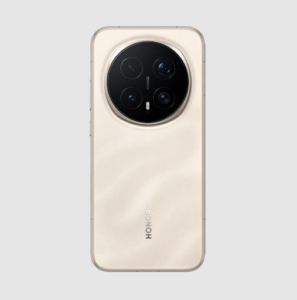
Regular updates should be treated as routine maintenance, much like locking your door or backing up important files. In everyday life, the few minutes spent updating can prevent hours of stress caused by security issues or system failures. Updates help protect your data, improve performance, and keep your phone compatible with modern apps. When some users eventually decide it is time to move on from an aging device, switching to a newer, well-supported phone—such as the HONOR Magic 8 Pro smartphone—can make staying updated easier and more reliable in the long run. Ultimately, turning updates into a habit rather than a decision helps keep your digital life safer and smoother every day.
-

 TECHNOLOGY1 year ago
Top 10 Must-Read Stories from Kristen Archives You Can’t Miss
-

 TECHNOLOGY2 years ago
Sky Bri Net Worth Revealed: How She Built Her Financial Empire
-

 BEAUTY2 years ago
Revitalize Your Hair with Oribe Hair Care for Damaged Hair: Style It with Blue Dresses for Weddings and Events
-

 TOPIC2 years ago
Things To Know Before Moving To Burlingame, CA
-

 TOPIC2 years ago
Basement Renovation Contractors: How They Tackle Structural Issues During Renovations
-

 TOPIC2 years ago
Reasons You Should Move to San Francisco
-
TOPIC2 years ago
Should You Move from Thousand Oaks CA to Los Angeles?
-

 TOPIC2 years ago
Moving To Irvine: Tips For A Smooth Transition To Orange County